
Aider, Cline and Continue with EU Models: Setup for Kimi K3, GLM 5.3, DeepSeek and Qwen
 Niklas KarolyFounder Nodion
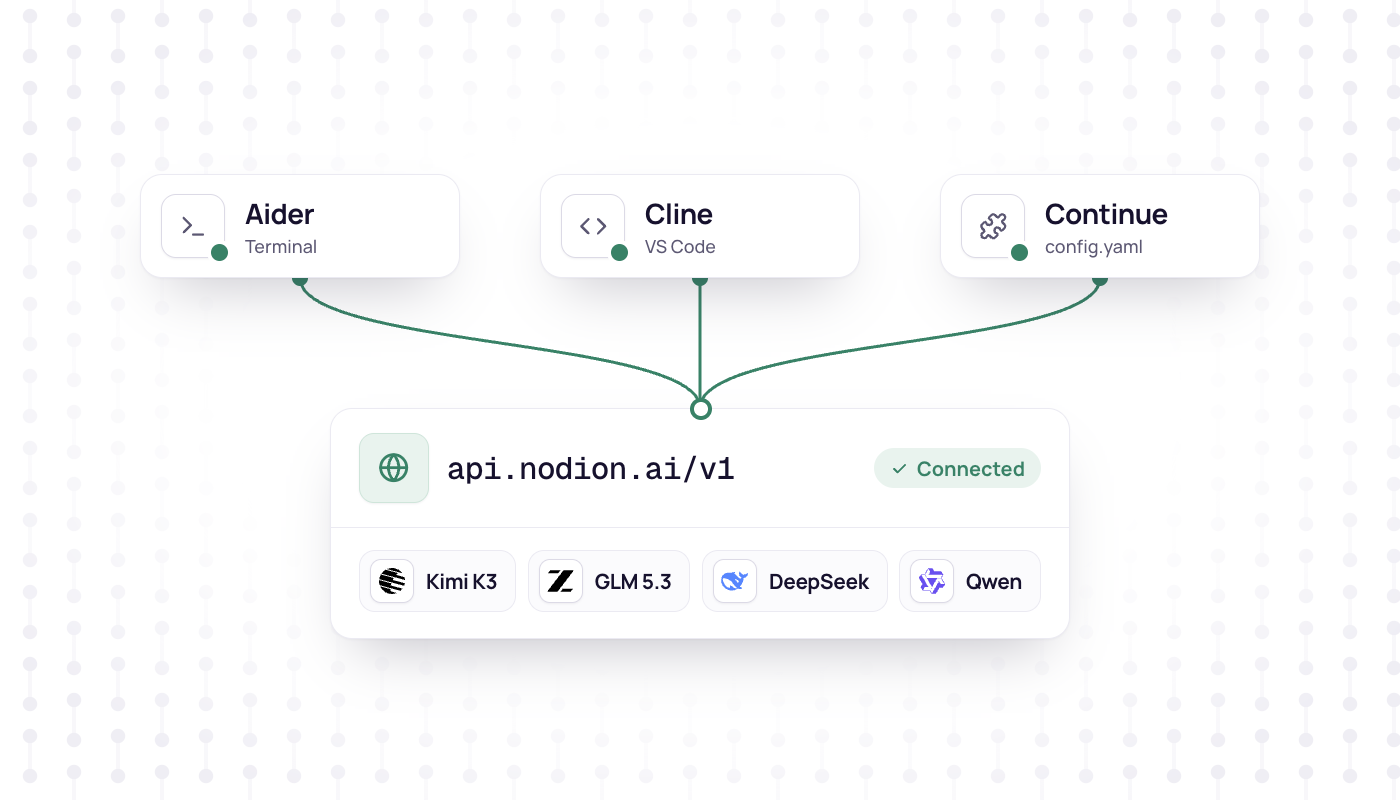
In short
- Aider, Cline and Continue can use the Nodion AI Gateway at https://api.nodion.ai/v1 with a Nodion API key and a model id such as
moonshot/kimi-k3. - Aider takes
OPENAI_API_BASE,OPENAI_API_KEYand--model openai/moonshot/kimi-k3; Cline uses the OpenAI Compatible provider with context window and max output entered by hand; Continue needsprovider: openai,apiBaseandcapabilities: [tool_use]in config.yaml. - The gateway routes only to providers based in the EU, all serving with zero data retention, and you need no account with those providers.
- Requests are billed from the prepaid wallet or, with a key on an AI Coding Plan, from the plan; see AI Coding Plans.
Aider, Cline and Continue all talk to OpenAI-compatible APIs, so each of them can use the Nodion AI Gateway at https://api.nodion.ai/v1 with a Nodion API key and a model id such as moonshot/kimi-k3. The gateway routes only to providers based in the EU, all serving with zero data retention, and you need no account with those providers. Below are the exact settings for each tool, the limits to enter for Kimi K3, GLM 5.3, DeepSeek V4.1 Flash and Qwen3.8 27B, and what to check when a request fails.
The settings follow each tool's official docs as of October 2026: Aider v0.86.0 (its latest release, from August 2025), Cline v4.1.26 and Continue v2.1.0 for VS Code. If a field has moved in a newer version, the docs linked under each section are the reference.
What you need
- A Nodion account and a project. Open AI Inference in that project.
- An API key. Create one under AI Inference → Keys; it uses the prepaid wallet. If you have an AI Coding Plan, create the key on the plan instead. Keys start with
nodion_ai_and are shown once. Platform keys do not work here. - The base URL
https://api.nodion.ai/v1. - A model id from the table below.
curl https://api.nodion.ai/v1/modelslists every chat model and needs no key.
Put the key in your shell once, for example in ~/.zshrc:
export NODION_AI_KEY=nodion_ai_your_keyModels and limits
All four models support tool calls. Cline needs the context and max output entered by hand; in Aider and Continue they are optional. Values from the Nodion catalog on 29 October 2026; each model page shows the current values, providers and prices.
| Model | Model id | Context | Max output | Image input |
|---|---|---|---|---|
| Kimi K3 | moonshot/kimi-k3 | 1,048,576 | 32,768 | Yes |
| GLM 5.3 | z-ai/glm-5.3 | 1,048,576 | 131,072 | No, text only |
| DeepSeek V4.1 Flash | deepseek/deepseek-v4.1-flash | 1,048,576 | 393,216 | Yes |
| Qwen3.8 27B | qwen/qwen3.8-27b | 262,144 | 131,072 | Yes |
Source: AI Inference catalog, checked 29 October 2026.
Aider
Aider runs in the terminal. Its docs for OpenAI-compatible APIs use two environment variables and a model name prefixed with openai/. With Nodion:
export OPENAI_API_BASE=https://api.nodion.ai/v1
export OPENAI_API_KEY=$NODION_AI_KEY
aider --model openai/moonshot/kimi-k3
For the other models, put openai/ in front of the Nodion id: openai/z-ai/glm-5.3, openai/deepseek/deepseek-v4.1-flash, openai/qwen/qwen3.8-27b. Aider has no setting that reads the key from a variable of your choice, hence the mapping to OPENAI_API_KEY (or pass --openai-api-key).
OPENAI_API_BASE sends every openai/ model in that shell to Nodion. To keep the base URL with the project instead, put it in a .aider.conf.yml in the repo. Keep the key out of that file; it belongs in the environment variable or a .env file:
model: openai/moonshot/kimi-k3
openai-api-base: https://api.nodion.ai/v1
On start, Aider prints Unknown context window size and costs, using sane defaults. Its docs say you can usually ignore this: Aider then assumes an unlimited context window and a free model, and it never enforces token limits anyway. To give it the real limits, add a .aider.model.metadata.json to your home directory, the repo root or the directory you start Aider in:
{
  "openai/moonshot/kimi-k3": {
    "max_input_tokens": 1048576,
    "max_output_tokens": 32768,
    "input_cost_per_token": 0,
    "output_cost_per_token": 0,
    "litellm_provider": "openai",
    "mode": "chat"
  }
}
The key is the same name you pass to --model, and litellm_provider matches its openai/ prefix. Add one entry per model. Leave the cost fields at 0, or enter the per-token prices from the model page.
Sources: Aider: OpenAI compatible APIs, advanced model settings, .aider.conf.yml, releases.
Cline
Cline is set up in the VS Code extension's settings, not in a file. Open the Cline settings (gear icon) and set API Provider to OpenAI Compatible:
- Base URL:
https://api.nodion.ai/v1 - API Key: your Nodion key itself, the value rather than a variable name.
- Model ID: once the URL and key are set, Cline loads the list from the gateway's
/modelsendpoint. Pickmoonshot/kimi-k3or type the id. - Custom Headers and the Azure options stay empty.
Then open Model Configuration and fill in two things by hand for the model you picked:
- Context Window Size and Max Output Tokens from the table above. For a model Cline does not know, it assumes a context window of 128,000 tokens.
- Supports Images: on for Kimi K3, DeepSeek V4.1 Flash and Qwen3.8 27B, off for GLM 5.3, which reads text only. Cline turns this on by default for unknown models, so it would otherwise send images to a model that cannot read them.
When you switch models, update the limits and the image setting with it.
Sources: Cline: OpenAI Compatible, field labels in the source, defaults for unknown models.
Continue
Continue reads ~/.continue/config.yaml (on Windows %USERPROFILE%\.continue\config.yaml). Nodion goes in as an OpenAI provider with its own apiBase:
name: Nodion
version: 1.0.0
schema: v1

models:
  - name: Kimi K3 (Nodion)
    provider: openai
    model: moonshot/kimi-k3
    apiBase: https://api.nodion.ai/v1
    apiKey: ${{ secrets.NODION_AI_KEY }}
    capabilities:
      - tool_use
      - image_input
    defaultCompletionOptions:
      contextLength: 1048576
      maxTokens: 32768

  - name: GLM 5.3 (Nodion)
    provider: openai
    model: z-ai/glm-5.3
    apiBase: https://api.nodion.ai/v1
    apiKey: ${{ secrets.NODION_AI_KEY }}
    capabilities:
      - tool_use
    defaultCompletionOptions:
      contextLength: 1048576
maxTokens: 131072- The header with
name,versionandschemais required. capabilities: [tool_use]is what Agent mode needs. Continue detects tool support from the model name, and Nodion's ids are not on its list, so without this line Agent mode is unavailable. You can add capabilities but not switch detection off. Setimage_inputonly for models with image input, so not for GLM 5.3.- The key goes into
~/.continue/.envasNODION_AI_KEY=nodion_ai_your_key. The VS Code and JetBrains extensions cannot read your shell's environment variables, so anexportalone is not enough. Never commit.envfiles. rolescan be left out: the default is chat, edit, apply and summarize.
Sources: Continue: OpenAI, config.yaml reference, model capabilities, secrets.
Kilo Code
Kilo Code works the same way: under Settings → Providers → Custom provider, choose OpenAI Compatible with the base URL https://api.nodion.ai/v1; in a kilo.json, keep the provider in the global config and set limit.context, limit.output and tool_call: true per model, much like the OpenCode guide.
Source: Kilo Code: OpenAI Compatible.
Billing: wallet or coding plan
The key in the tool decides who pays. A key from AI Inference → Keys draws from the prepaid wallet, per token at the model's price. A key on an AI Coding Plan (Go, Pro or Max) draws chat and tool usage from the plan, which counts against a 5-hour, a weekly and a monthly window. When a window is full, requests continue from the wallet only if the plan allows wallet use; otherwise they stop until the window resets. The plans are on AI Coding Plans, and prices per model on each model page and in the AI Inference catalog.
Sources: AI Inference docs, AI Coding Plans.
Troubleshooting
- 401 with
missing bearer tokenorinvalid api key: the key does not arrive. In Aider, checkOPENAI_API_KEYin the same shell; in Continue, check~/.continue/.env. The key must start withnodion_ai_. - 404 with
model not found: compare the id with/v1/models, prefix included (moonshot/,z-ai/,deepseek/,qwen/). In Aider,openai/goes in front of it. - 402: the wallet does not cover the request (
empty_balance) or a spend limit was reached (daily_quota,month_quota). Top up or raise the limit on the Billing tab. - 503: no healthy route for the model matches the project's settings, for example after you excluded providers in the AI settings.
- Continue says Agent mode is unavailable: add
capabilities: [tool_use]to the model. - Cline sends images to GLM 5.3: turn Supports Images off for that model.
Source: AI API reference: errors and limits.
Other tools
- Codex CLI over the Responses API: the Codex CLI guide.
- OpenCode with Kimi K3 and GLM 5.3: the OpenCode guide.
- Your own code with the OpenAI SDK: switch to an OpenAI-compatible API.
- Claude Code and Cursor cannot call this API; they keep their own models. They can deploy to Nodion over MCP.
Frequently asked questions
How do I use Aider with an OpenAI-compatible API?
Set OPENAI_API_BASE to the endpoint and OPENAI_API_KEY to your key, then start Aider with --model openai/ followed by the model id. For Nodion that is https://api.nodion.ai/v1 and, for example, --model openai/moonshot/kimi-k3.
Can Cline use Kimi K3 or GLM 5.3?
Yes. Choose OpenAI Compatible as the API provider, set the base URL to https://api.nodion.ai/v1, paste a Nodion key and pick moonshot/kimi-k3 or z-ai/glm-5.3. Enter the context window and max output tokens by hand, and turn Supports Images off for GLM 5.3, which reads text only.
Why is Agent mode unavailable in Continue with a custom model?
Continue detects tool support from the model name, and custom ids such as moonshot/kimi-k3 are not on its list. Add capabilities: [tool_use] to the model in config.yaml.
Do I need an account with the model labs or providers?
Not with Nodion. You call every model with one Nodion API key, and the gateway routes only to providers based in the EU, all serving with zero data retention.